Scheduling Flows
Scheduling Flows
Section titled “Scheduling Flows”Automate your trading strategies by scheduling when your flows should run. Set up one-time executions or recurring schedules that run on specific patterns.
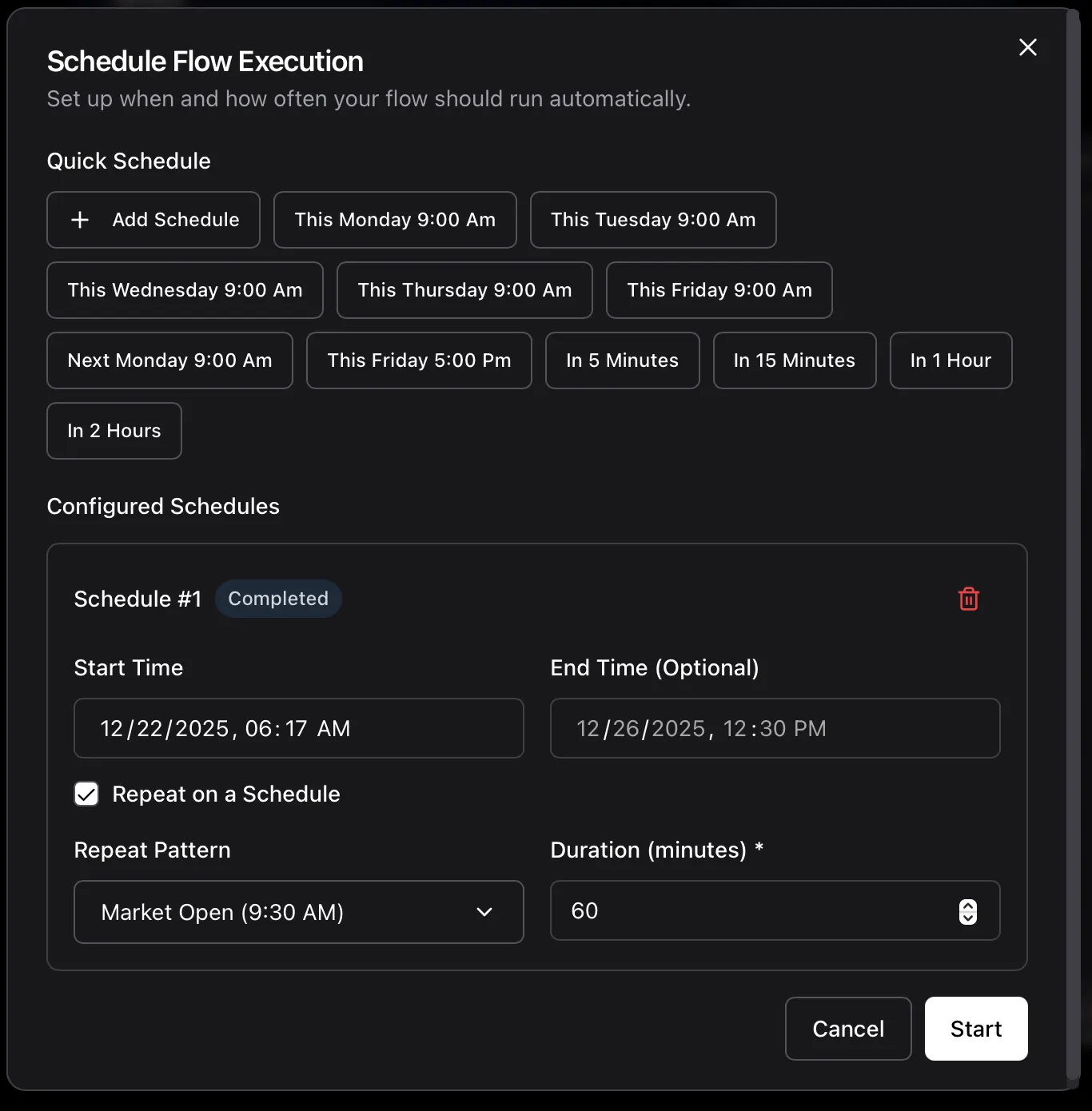
What is Flow Scheduling?
Section titled “What is Flow Scheduling?”Flow scheduling allows you to:
- ✅ Run flows at specific times automatically
- ✅ Set up recurring schedules (daily, weekly, custom patterns)
- ✅ Schedule multiple executions for different time periods
- ✅ Monitor execution status in real-time
- ✅ Edit or delete schedules anytime
Perfect for:
- Market open/close strategies
- Daily analysis routines
- Weekly portfolio rebalancing
- Custom trading schedules
Quick Start
Section titled “Quick Start”Creating Your First Schedule
Section titled “Creating Your First Schedule”- Open Your Flow - Navigate to the flow you want to schedule
- Access Schedules - Click the dropdown in the top bar
- Create New Schedule - Select “Create New Schedule” option
- Configure Schedule - Set start time, end time (optional), and recurrence
- Start - Click “Start” to create the schedule
Your flow will now run automatically at the scheduled time!
Schedule Types
Section titled “Schedule Types”One-Time Schedule
Section titled “One-Time Schedule”Executes your flow once at a specific time.
Use Cases:
- Test a strategy at market open tomorrow
- Run analysis after earnings release
- Execute special event trading logic
Configuration:
- Start Time: When the flow should start (required)
- End Time: When the flow should stop (optional)
- No End Time: Flow executes until manually stopped or completion
Example:
- Start: Tomorrow 9:30 AM
- End: Tomorrow 4:00 PM
- Result: Flow executes from 9:30 AM to 4:00 PM tomorrow
Recurring Schedule
Section titled “Recurring Schedule”Executes your flow repeatedly based on a pattern.
Use Cases:
- Daily market monitoring
- Weekly portfolio analysis
- Custom interval strategies
Configuration:
- Start Time: When recurring schedule begins
- Repeat Pattern: How often to execute (cron expression)
- Duration: How long each execution should last (in minutes)
Example:
- Start: This Monday 9:30 AM
- Pattern: “Market Open (9:30 AM)” - executes every weekday at 9:30 AM
- Duration: 390 minutes (6.5 hours until market close)
- Result: Flow executes every weekday from 9:30 AM to 4:00 PM
Schedule Configuration
Section titled “Schedule Configuration”Start Time
Section titled “Start Time”Required for all schedules
- Must be at least 1 minute in the future
- Use datetime picker to select exact time
- Displayed in your local timezone
Quick Presets:
- In 5 minutes
- In 15 minutes
- In 1 hour
- In 2 hours
- This Monday 9:00 AM
- This Friday 5:00 PM
- Next Monday 9:00 AM
End Time (Optional)
Section titled “End Time (Optional)”For one-time schedules:
- When specified: Flow stops at this time
- When null: Flow schedules until completion or manual stop
Important: If you don’t set an end time, make sure your flow has proper completion logic (like a condition that stops the flow).
Repeat Pattern (Recurring Only)
Section titled “Repeat Pattern (Recurring Only)”Choose from presets or create custom cron expressions.
Built-in Presets:
| Pattern | Cron Expression | Description |
|---|---|---|
| Market Open (9:30 AM) | 30 9 * * 1-5 | Every weekday at 9:30 AM |
| Market Close (4:00 PM) | 0 16 * * 1-5 | Every weekday at 4:00 PM |
| Pre-Market (8:00 AM) | 0 8 * * 1-5 | Every weekday at 8:00 AM |
| Every Monday (9:30 AM) | 30 9 * * 1 | Every Monday at 9:30 AM |
| First Monday Monthly | 30 9 1-7 * 1 | First Monday of month at 9:30 AM |
Custom Cron Expression:
Format: minute hour day month weekday
Examples:
0 */2 * * *- Every 2 hours15 14 * * 1- 2:15 PM every Monday0 9 1 * *- 9:00 AM on 1st of every month30 9,16 * * 1-5- 9:30 AM and 4:00 PM weekdays
Cron Components:
- minute: 0-59
- hour: 0-23 (24-hour format)
- day: 1-31
- month: 1-12
- weekday: 0-6 (0=Sunday, 1=Monday, …, 6=Saturday)
Special Characters:
*- Any value (every minute/hour/day)*/X- Every X units (e.g.,*/15= every 15 minutes)X-Y- Range (e.g.,1-5= Monday through Friday)X,Y- Multiple values (e.g.,9,16= 9 and 16)
Duration (Recurring Only)
Section titled “Duration (Recurring Only)”Required for recurring schedules
Specifies how long each execution should last (in minutes).
Important Rules:
- Must be greater than 0
- Must be at least as long as the cron interval
- Example: If cron executes every 30 minutes, duration must be ≥ 30 minutes
Common Durations:
- 60 minutes (1 hour) - Short analysis windows
- 390 minutes (6.5 hours) - Full trading day (9:30 AM - 4:00 PM)
- 120 minutes (2 hours) - Extended analysis sessions
- 30 minutes - Quick monitoring cycles
What Happens:
- Flow starts at the cron time
- Executes for the specified duration
- Automatically stops after duration expires
- Next occurrence starts at the next cron time
Managing Schedules
Section titled “Managing Schedules”View All Schedules
Section titled “View All Schedules”- Open Flow - Navigate to your flow
- Schedules Dropdown - Click the dropdown in top bar
- See All Schedules - All scheduled and active executions are listed
Schedule Statuses:
- 🔵 Waiting - Scheduled, not started yet
- 🟢 Running - Currently executing
- ⚪ Completed - Finished successfully
- 🔴 Failed - Execution failed
Edit a Schedule
Section titled “Edit a Schedule”- Open Schedule Dialog - Click “Create New Schedule”
- Find Your Schedule - Look for the schedule you want to edit
- Modify Settings - Change start time, end time, pattern, or duration
- Save Changes - Click “Start” to apply changes
What You Can Change:
- Start and end times
- Recurring pattern (cron expression)
- Duration for recurring schedules
- Enable/disable recurrence
Delete a Schedule
Section titled “Delete a Schedule”Method 1: From Schedule Dialog
- Open “Create New Schedule” dialog
- Find the schedule you want to remove
- Click the trash icon next to the schedule
- Click “Start” to apply changes
Method 2: From Schedules Dropdown
- Click Schedules dropdown
- Select the schedule you want to delete
- Delete from the schedule details view
Important: Deleting a schedule removes it permanently. If it’s currently executing, it will be stopped.
Stop a Running Schedule
Section titled “Stop a Running Schedule”- View Schedule - Select the running schedule from Schedules dropdown
- Stop Manually - Use the stop button in the schedule interface
- Verify Stopped - Status should change to “Completed”
Multiple Schedules
Section titled “Multiple Schedules”You can create multiple schedules for the same flow!
Use Cases
Section titled “Use Cases”Different Time Periods:
Schedule 1: Monday-Wednesday 9:30 AM - 4:00 PM
Schedule 2: Thursday-Friday 10:00 AM - 3:00 PM
Different Strategies:
Schedule 1: Pre-market analysis (8:00 AM - 9:30 AM)
Schedule 2: Trading session (9:30 AM - 4:00 PM)
Schedule 3: After-hours review (4:00 PM - 5:00 PM)
Testing vs Production:
Schedule 1: Test run tomorrow 10:00 AM (1 hour)
Schedule 2: Production recurring (every weekday 9:30 AM)
Overlap Prevention
Section titled “Overlap Prevention”The system prevents overlapping schedules:
- ✅ Non-overlapping times - Allowed
- ❌ Same time periods - Blocked with error message
- ⚠️ Infinite duration - Cannot have other schedules after it
Example Error:
“This schedule overlaps with schedule #2”
Solution: Adjust start/end times so schedules don’t overlap.
Advanced Patterns
Section titled “Advanced Patterns”Market Trading Hours
Section titled “Market Trading Hours”Full Trading Day (6.5 hours):
- Pattern:
30 9 * * 1-5(9:30 AM weekdays) - Duration: 390 minutes
- Result: Executes every weekday 9:30 AM - 4:00 PM
Multi-Session Strategy
Section titled “Multi-Session Strategy”Pre-Market + Trading:
- Schedule 1:
0 8 * * 1-5(8:00 AM), 90 min duration - Schedule 2:
30 9 * * 1-5(9:30 AM), 390 min duration
Hourly Monitoring
Section titled “Hourly Monitoring”Check Markets Every Hour:
- Pattern:
0 * * * *(every hour at :00) - Duration: 5 minutes
- Result: Brief 5-minute execution every hour
Weekly Analysis
Section titled “Weekly Analysis”Every Monday Morning:
- Pattern:
0 9 * * 1(9:00 AM Monday) - Duration: 60 minutes
- Result: 1-hour execution every Monday
End of Month Reports
Section titled “End of Month Reports”Last Day of Month:
- Pattern:
0 17 28-31 * *(5:00 PM on days 28-31) - Duration: 30 minutes
- Add logic to check if it’s actually month-end
Monitoring Schedules
Section titled “Monitoring Schedules”Real-Time Status Updates
Section titled “Real-Time Status Updates”Schedules automatically update their status:
- Waiting → Flow is scheduled but not started
- Running → Flow is currently executing
- Completed → Flow finished successfully
- Failed → Flow encountered an error
View Schedule Details
Section titled “View Schedule Details”- Select Schedule - Click on a schedule in the Schedules dropdown
- See Graph State - View the flow execution in real-time
- Check Logs - Monitor node outputs and errors
- Track Progress - See which nodes are active
Execution History
Section titled “Execution History”All completed executions are preserved with:
- Execution logs
- Final state
- Error messages (if failed)
- Duration and timing information
Troubleshooting
Section titled “Troubleshooting””Scheduled start time must be at least 1 minute in the future”
Section titled “”Scheduled start time must be at least 1 minute in the future””Problem: Trying to schedule a run too close to current time
Solutions:
- Increase start time by at least 1 minute
- Use quick presets like “In 5 minutes”
- Check your system clock is correct
”This schedule overlaps with schedule #X”
Section titled “”This schedule overlaps with schedule #X””Problem: Two schedules have overlapping time periods
Solutions:
- Adjust start/end times to eliminate overlap
- Delete one of the overlapping schedules
- Use different time windows for each schedule
”Cron expression is required for recurring schedules”
Section titled “”Cron expression is required for recurring schedules””Problem: Recurring schedule enabled but no pattern set
Solutions:
- Select a preset pattern from dropdown
- Enter a custom cron expression
- Disable “Repeat on a Schedule” if you want one-time run
”Duration must be at least X minutes (cron interval)”
Section titled “”Duration must be at least X minutes (cron interval)””Problem: Duration is shorter than cron interval
Solutions:
- Increase duration to match or exceed cron interval
- Example: If cron is every 2 hours, duration must be ≥ 120 minutes
- Change cron pattern to less frequent interval
Schedule Not Starting
Section titled “Schedule Not Starting”Problem: Schedule reaches start time but doesn’t execute
Solutions:
- Check Runner Status: Ensure runner service is running
- Verify Flow State: Make sure flow is in “READY” state
- Check Logs: Look for error messages in system logs
- Retry Schedule: Delete and recreate the schedule
Flow Not Stopping at End Time
Section titled “Flow Not Stopping at End Time”Problem: Flow continues past scheduled end time
Solutions:
- Manual Stop: Stop the schedule manually from UI
- Check Flow Logic: Ensure flow doesn’t have infinite loops
- Review Components: Some components may not respect stop signals
- Set Shorter Duration: Use more conservative time limits
Best Practices
Section titled “Best Practices”Testing Schedules
Section titled “Testing Schedules”Before Production:
- ✅ Test with “In 5 minutes” schedule first
- ✅ Verify flow executes and stops correctly
- ✅ Check logs for any errors
- ✅ Confirm expected behavior
- ✅ Then create production schedule
Naming Schedules
Section titled “Naming Schedules”The schedule ID becomes the schedule name. Use descriptive patterns:
market-open-strategy-mondaydaily-analysis-recurringtest-schedule-2024-01-15
Duration Guidelines
Section titled “Duration Guidelines”Choose appropriate durations:
- Short Analysis: 5-30 minutes
- Hourly Monitoring: 5-10 minutes
- Full Trading Day: 390 minutes (6.5 hours)
- Extended Session: 480 minutes (8 hours)
Cron Patterns
Section titled “Cron Patterns”Start Simple:
- Use preset patterns when possible
- Test custom cron expressions carefully
- Verify timing before production use
Common Mistakes:
- ❌
0 9 * * *- Runs EVERY DAY including weekends - ✅
0 9 * * 1-5- Runs weekdays only - ❌ Forgetting timezone differences
- ✅ Test timing with “In 5 minutes” first
Resource Management
Section titled “Resource Management”Avoid Conflicts:
- Don’t overlap schedules unnecessarily
- Limit concurrent executions on same account
- Monitor API rate limits
- Use testnet for experimental schedules
Examples
Section titled “Examples”Example 1: Daily Market Monitoring
Section titled “Example 1: Daily Market Monitoring”Goal: Monitor markets every weekday during trading hours
Configuration:
- Pattern: Market Open (9:30 AM) -
30 9 * * 1-5 - Duration: 390 minutes
- Start: Next Monday
Result: Flow executes Monday-Friday, 9:30 AM - 4:00 PM automatically.
Example 2: Weekly Portfolio Review
Section titled “Example 2: Weekly Portfolio Review”Goal: Review portfolio every Monday morning
Configuration:
- Pattern: Every Monday (9:30 AM) -
30 9 * * 1 - Duration: 60 minutes
- Start: This coming Monday
Result: 1-hour execution every Monday at 9:30 AM.
Example 3: Pre-Market Analysis
Section titled “Example 3: Pre-Market Analysis”Goal: Analyze pre-market data before trading
Configuration:
- Pattern: Pre-Market (8:00 AM) -
0 8 * * 1-5 - Duration: 90 minutes
- Start: Tomorrow
Result: Executes weekdays 8:00-9:30 AM for pre-market analysis.
Example 4: Hourly Price Checks
Section titled “Example 4: Hourly Price Checks”Goal: Check prices every hour during market hours
Configuration:
- Pattern: Custom -
0 9-16 * * 1-5 - Duration: 5 minutes
- Start: Tomorrow
Result: Quick 5-minute executions at 9:00, 10:00, 11:00… 4:00 PM on weekdays.
Example 5: End of Day Summary
Section titled “Example 5: End of Day Summary”Goal: Generate daily summary at market close
Configuration:
- Pattern: Market Close (4:00 PM) -
0 16 * * 1-5 - Duration: 30 minutes
- Start: Today
Result: 30-minute execution starting at 4:00 PM every weekday.
Security Considerations
Section titled “Security Considerations”API Keys and Schedules
Section titled “API Keys and Schedules”Important: Scheduled flows use the account configured in flow settings.
- ✅ Verify correct account before scheduling
- ✅ Use testnet accounts for experimental schedules
- ✅ Monitor schedules regularly
- ✅ Delete schedules if changing API keys
- ✅ Review active schedules periodically
Production vs Testnet
Section titled “Production vs Testnet”Recommended Approach:
- Test schedule on testnet first
- Verify timing and execution
- Check resource usage
- Then deploy to production account
- Monitor closely for first few executions
Q: Can I schedule a flow that’s already executing?
A: No, the schedule dialog is disabled during active executions. Stop the current execution first.
Q: What happens if I edit a flow that has schedules?
A: Schedules use the flow version they were created with. New edits create new versions, so existing schedules continue with the original version.
Q: Can I have multiple recurring schedules?
A: Yes, as long as they don’t overlap. You can have different patterns for different days/times.
Q: What if my schedule misses the start time (e.g., system down)?
A: Missed schedules are not retroactively executed. The next occurrence will execute as scheduled.
Q: How do I know if a schedule is working?
A: Check the Schedules dropdown. You’ll see the status change from “Waiting” to “Running” at the scheduled time.
Q: Can I schedule flows on different versions?
A: Yes, each schedule is tied to a specific flow version. Different versions can have different schedules.
Q: What’s the maximum duration for a schedule?
A: There’s no hard limit, but consider resource usage. Most trading strategies use 6-8 hours maximum.
Q: Do schedules work with dry run mode?
A: No, schedules execute actual flows. Use the dry run feature separately for testing.
Q: Can I export/import schedules?
A: Not currently. You need to manually recreate schedules if copying flows.
Q: What timezone are schedules in?
A: Schedules use your local timezone. The system converts to UTC internally.
Next Steps
Section titled “Next Steps”Need Help?
Section titled “Need Help?”If you encounter issues with scheduling:
- Check the troubleshooting section above
- Verify your flow is in READY state
- Review system logs for errors
- Test with a simple schedule first
- Join our community for support
Remember: Always test schedules with testnet accounts first before using real trading accounts!